
Productivity is no longer about working longer hours. For many people across the United States, it is about managing time better, reducing distractions, organizing information, and making sure important work does not get lost in a crowded inbox or an endless list of tasks.
Whether you are a remote employee, small-business owner, student, freelancer, manager, or entrepreneur, the right productivity app can make daily work easier. A good app can help you organize projects, plan meetings, take notes, track time, collaborate with others, automate repetitive tasks, and stay focused on your priorities.
However, more apps do not always mean better productivity. Using too many tools can create duplicate tasks, scattered information, unnecessary notifications, and extra work. Many productivity experts and users recommend building a simple system around a few tools that solve specific problems instead of downloading every new app.
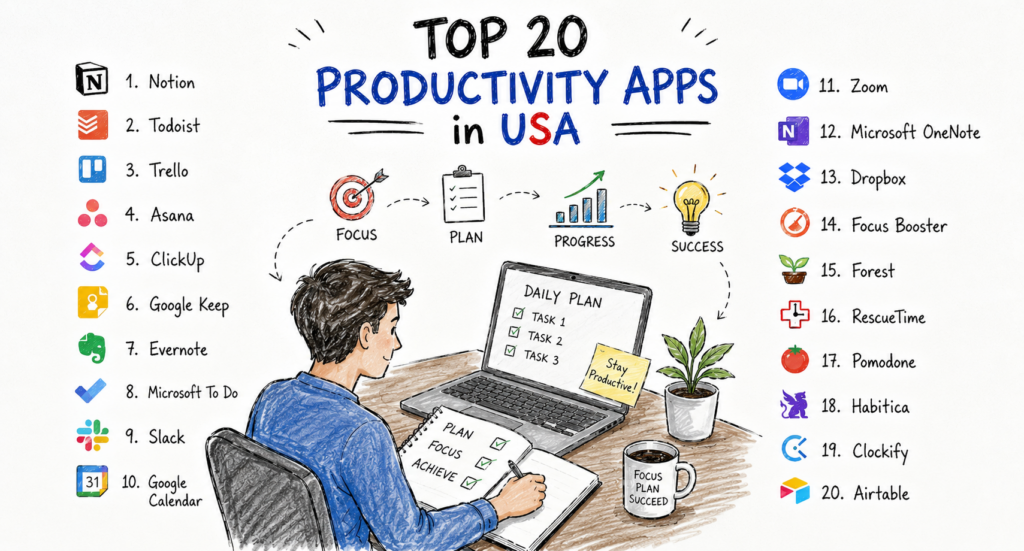
This guide reviews theTop 20 Productivity Apps in the USA. Each app was selected for its usefulness, reliability, features, ease of use, value, and ability to support modern work and personal productivity.
How We Selected These Productivity Apps
We evaluated the apps in this guide using the following criteria:
Ease of use for beginners
Task and project management capabilities
Note-taking and knowledge organization
Team collaboration features
Mobile and desktop availability
Integrations with other business tools
Automation and AI capabilities
Free-plan value
Pricing and long-term affordability
Popularity among U.S. professionals and businesses
The goal is not to identify one app that works for everyone. Different people have different productivity challenges. Some need a simple daily task list, while others need a complete system for managing projects, documents, meetings, and teams.
1. Notion
Best for: All-in-one workspaces, notes, company knowledge, personal planning, and flexible organization
has become one of the most popular productivity platforms among U.S. professionals, startups, students, creators, and remote teams. Its biggest advantage is flexibility. Users can create notes, databases, project dashboards, company wikis, content calendars, meeting documents, and personal planners in one workspace.
Unlike a traditional task app, Notion is built around pages and databases. This allows users to organize information in a highly customized way. A marketing team can build a content calendar, while a student can create a class dashboard. A small business can use the same platform to manage employee information, internal documents, and projects.
Notion is particularly useful for people who want to create a centralized “second brain” for work and personal information.
Key Features
Custom pages and databases
Task and project management
Team wikis
Meeting notes
Content calendars
Templates
Real-time collaboration
AI writing and summarization tools
Calendar and integration support
Pros
Highly flexible and customizable
Useful for both personal and business productivity
Strong documentation and knowledge-management features
Large library of templates
Clean and modern interface
Cons
New users may need time to understand databases and advanced features
Complex workspaces can become difficult to maintain
Some advanced AI and business features require paid plans
Pricing
Notion offers a free plan for individuals and basic collaboration. Paid plans provide additional features, administration tools, and expanded team capabilities.
Who Should Use Notion?
Notion is a strong choice for:
Entrepreneurs
Content creators
Students
Remote teams
Marketing departments
Startups
Consultants
People who want one place for notes, projects, and knowledge
Best use case: Building a customized productivity system that combines notes, databases, planning, and collaboration.
2. Todoist
Best for: Daily task management, personal organization, recurring tasks, and simple team collaboration
[Todoist](https://www.todoist.com/pricing/?utm_source=chatgpt.com) is one of the most established task-management apps available. It is designed to help users quickly capture tasks, organize projects, set priorities, create reminders, and keep track of deadlines.
One of Todoist’s strongest features is its natural-language task entry. Users can type a task such as “Send the client proposal next Friday at 10 a.m.,” and the app can recognize the date and schedule the task accordingly.
Todoist works well because it remains focused on task management. It does not try to become a complete business operating system. For people who need a dependable place to manage daily responsibilities, this simplicity can be a major advantage.
Todoist offers a free plan, while its paid plans add more projects, advanced reminders, expanded filters, reporting history, and additional collaboration capabilities. Its current pricing structure includes free, Pro, and Business options.
Key Features
Quick task capture
Due dates and recurring tasks
Priority levels
Subtasks
Project organization
List, board, and calendar views
Reminders
Labels and filters
Team task assignments
Calendar and communication integrations
Pros
Fast and easy to learn
Excellent cross-platform support
Clean and distraction-free interface
Useful for personal and professional tasks
Strong recurring-task functionality
Cons
Advanced features require a paid plan
Less suitable for complex enterprise project management
Detailed project reporting is limited compared with dedicated work-management platforms
Pricing
Free plan available
Pro plan starts at approximately $5 per user per month** when billed annually
Business plan starts at approximately$8 per user per month plus applicable taxes, when billed annually
Who Should Use Todoist?
Todoist is ideal for:
Busy professionals
Freelancers
Students
Small-business owners
Remote workers
Individuals who prefer structured to-do lists
Best use case:Managing everyday tasks without the complexity of a large project-management platform.
3. ClickUp
Best for: All-in-one project management, team productivity, and business workflows
is a feature-rich productivity platform that combines tasks, documents, goals, dashboards, whiteboards, time tracking, communication, and automation.
ClickUp is designed for teams that want to reduce the number of separate applications they use. Instead of managing projects in one app, documents in another, and time tracking in a third, businesses can bring several workflows into one platform.
The platform offers multiple ways to view work, including lists, boards, calendars, timelines, and Gantt-style views. This makes it useful for teams with different planning preferences.
ClickUp is generally more task-focused than Notion. While Notion begins with documents and flexible pages, ClickUp is built around structured task and project management.
Key Features
Task and project management
Multiple project views
Team documents
Goals and milestones
Dashboards
Native time tracking
Whiteboards
Workflow automation
AI productivity tools
Integrations with popular business applications
Pros
Extensive feature set
Highly customizable
Strong value for growing teams
Supports complex workflows
Combines several productivity functions
Cons
The number of features can feel overwhelming
Initial setup may take time
Some advanced functions are available only on paid plans
Pricing
ClickUp provides a free plan with core features. Its paid plans generally start at approximately **$7 per user per month** for the Unlimited plan when billed annually, with higher plans offering advanced dashboards, automation, reporting, and enterprise controls.
Who Should Use ClickUp?
ClickUp is well suited to:
Startups
Marketing agencies
Software teams
Operations departments
Growing small businesses
Project managers
Teams managing multiple projects
Best use case: Replacing several separate productivity tools with one customizable work-management platform.
4. Asana
Best for:Team project management, work coordination, and goal tracking
[Asana](https://asana.com?utm_source=chatgpt.com) is one of the best-known project-management platforms in the United States. It helps teams organize work, assign responsibilities, set deadlines, monitor progress, and manage projects from planning through completion.
Asana is especially useful when multiple people are involved in a project. Team members can see who owns each task, what is due next, and where work may be delayed. Managers can use project timelines, dashboards, and reporting tools to understand progress without requesting frequent status updates.
Compared with some highly customizable platforms, Asana can be easier for teams to adopt because its core workflows are straightforward. Teams with simple or structured processes may reach productivity faster with Asana than with a more complex system.
Tasks and subtasks
Project timelines
Calendar and board views* Task dependencies
Workflow automation
Team goals Project reporting
Forms
Team collaboration
Integrations with communication and cloud tools
Pros
Easy-to-understand project structure
Strong collaboration features
Useful for cross-functional teams
Good visibility into responsibilities and deadlines
Scales from small teams to large organizations
Cons
Advanced reporting and automation require paid plans
Can become expensive for large teams
Some users may prefer more customization
Pricing
Asana offers a free personal plan for basic task and project management. Paid plans add advanced workflow tools, timelines, reporting, and administrative features. The Starter plan has been listed at approximately$10.99 per user per monthwhen billed annually.
Who Should Use Asana?
Asana is a good option for:
Marketing teams
HR departments
Product teams
Agencies
Nonprofit organizations
Business managers
Cross-functional teams
Best use case:Coordinating team projects and improving accountability.
5. Trello
Best for:Visual project planning and simple Kanban workflows
Each board represents a project, while lists represent stages or categories. Individual cards can contain tasks, due dates, checklists, comments, attachments, and team assignments.
For example, a marketing team might create the following lists:
Content Ideas
Writing
Editing
Scheduled
Published
Tasks can be moved from one stage to another by dragging cards across the board. This visual approach makes Trello easy to understand, even for users with little experience using project-management software.
Trello is often best for smaller teams and straightforward workflows. It may not provide the same level of reporting or complex project controls as platforms such as ClickUp or Asana, but its simplicity is a major strength.
Key Features
Kanban boards
Drag-and-drop task cards
Checklists
Due dates
File attachments
Team comments
Automation
Templates
Calendar and timeline views
Integrations
Pros
Very easy to learn
Highly visual
Good free plan
Useful for personal and team projects
Quick to set up
Cons
Limited advanced reporting
Large projects can become difficult to manage
Complex workflows may require additional tools
Pricing
Trello offers a free plan and paid plans with additional views, automation, administration, and collaboration features.
Who Should Use Trello?
Trello is ideal for:
Freelancers
Small teams
Students
Content creators
Event planners
Personal project managers
Businesses using Kanban workflows
Best use case:Organizing projects visually with simple, flexible boards.
6. Microsoft OneNote
Best for: Digital notebooks, meeting notes, research, and Microsoft 365 users
[Microsoft OneNote](https://www.microsoft.com/microsoft-365/onenote/digital-note-taking-app?utm_source=chatgpt.com) is a digital note-taking application that allows users to organize information into notebooks, sections, and pages.
OneNote is particularly useful for people who prefer a free-form notebook experience. Users can type notes, draw with a stylus, insert images, save web content, record information, and organize material by topic.
Because OneNote works closely with the Microsoft ecosystem, it is a natural choice for organizations using Microsoft 365. It can be useful for meeting notes, training materials, research, class notes, project information, and personal planning.
Key Features
Digital notebooks
Sections and pages
Text formatting
Handwritten notes
Drawing tools
Image and file insertion
Audio recording
Search
Cloud synchronization
Microsoft 365 integration
Pros
Flexible note organization
Good for detailed and long-term notes
Supports typing, drawing, and multimedia
Available across major devices
Useful for individuals and teams
The interface may feel less modern than some newer note-taking apps
Task management is not its primary strength
Large notebooks may require careful organization
Pricing
OneNote is available without a separate premium subscription in many use cases. Some advanced Microsoft 365 features and storage options depend on the user’s Microsoft plan.
Who Should Use Microsoft OneNote?
OneNote is a strong choice for:
Students
Teachers
Researchers
Corport 365 users
Professionals who take detailed meeting notes
Best use case:Organizing extensive notes and information in a familiar notebook structure.
7. Evernote
Best for: Note organization, document capture, web clipping, and personal knowledge management
[Evernote](https://evernote.com?utm_source=chatgpt.com) has long been recognized as a leading digital note-taking application. It helps users capture ideas, save documents, organize information, create task lists, and search through stored content.
Evernote is especially useful for people who collect information from many sources. Users can create notes, attach files, scan documents, save web pages, and organize everything into notebooks.
Its search capabilities make it valuable for professionals who need to find information quickly. For example, a consultant could store meeting notes, client research, project documents, and ideas in one searchable workspace.
Key Features
Notes and notebooks
Web clipping
Document scanning
File attachments
Task management
Calendar connections
Powerful search
Templates
Cross-device synchronization
Pros
Strong information-capture features
Useful web clipper
Good search capabilities
Supports many content types
Suitable for personal and professional use
Cons
Some users may find paid plans expensive
The feature set can feel complex for basic note-taking
Free-plan limits may not suit heavy users
Pricing
Evernote offers multiple subscription options. Features and limits vary by plan, and users should review current pricing before selecting a subscription.
Who Should Use Evernote?
Evernote is useful for:
Researchers
Writers
Consultants
Students
Business professionals
People who save large amounts of digital information
Best use case: Capturing and organizing notes, documents, and web-based information.
8. Microsoft To Do
Best for Free personal task management and Microsoft ecosystem users
Microsoft To Dois a simple task-management app designed for everyday planning.
The app allows users to create lists, set due dates, add reminders, build recurring tasks, and organize responsibilities. Its “My Day” feature encourages users to select the most important tasks for the current day rather than working from an overwhelming master list.
Microsoft To Do is a practical choice for users who want a straightforward productivity app without paying for a premium subscription. It also integrates with Microsoft services, making it useful for people who already use Outlook and Microsoft 365.
Key Features
Daily task planning
Custom task lists
Due dates
Reminders
Recurring tasks
Notes and file attachments
Shared lists
Microsoft account synchronization
Outlook integration
Pros
Free to use
Clean and simple interface
Strong integration with Microsoft services
Good for personal planning
Available on major platforms
Cons
Limited advanced project-management features
Less customizable than Todoist
Not designed for complex team workflows
Pricing
Microsoft To Do is generally available at no additional cost with a Microsoft account.
Who Should Use Microsoft To Do?
Microsoft To Do is ideal for:
Students
Families
Office employees
Personal users
Microsoft 365 customers
People who want a simple free task